 Zaga Studio
Make your first faceless YouTube video
· Stickman · 30 min
In this tutorial you’ll make a 3 to 5 minute explainer and publish it to YouTube. You need Zaga Studio on your Mac and a YouTube channel.
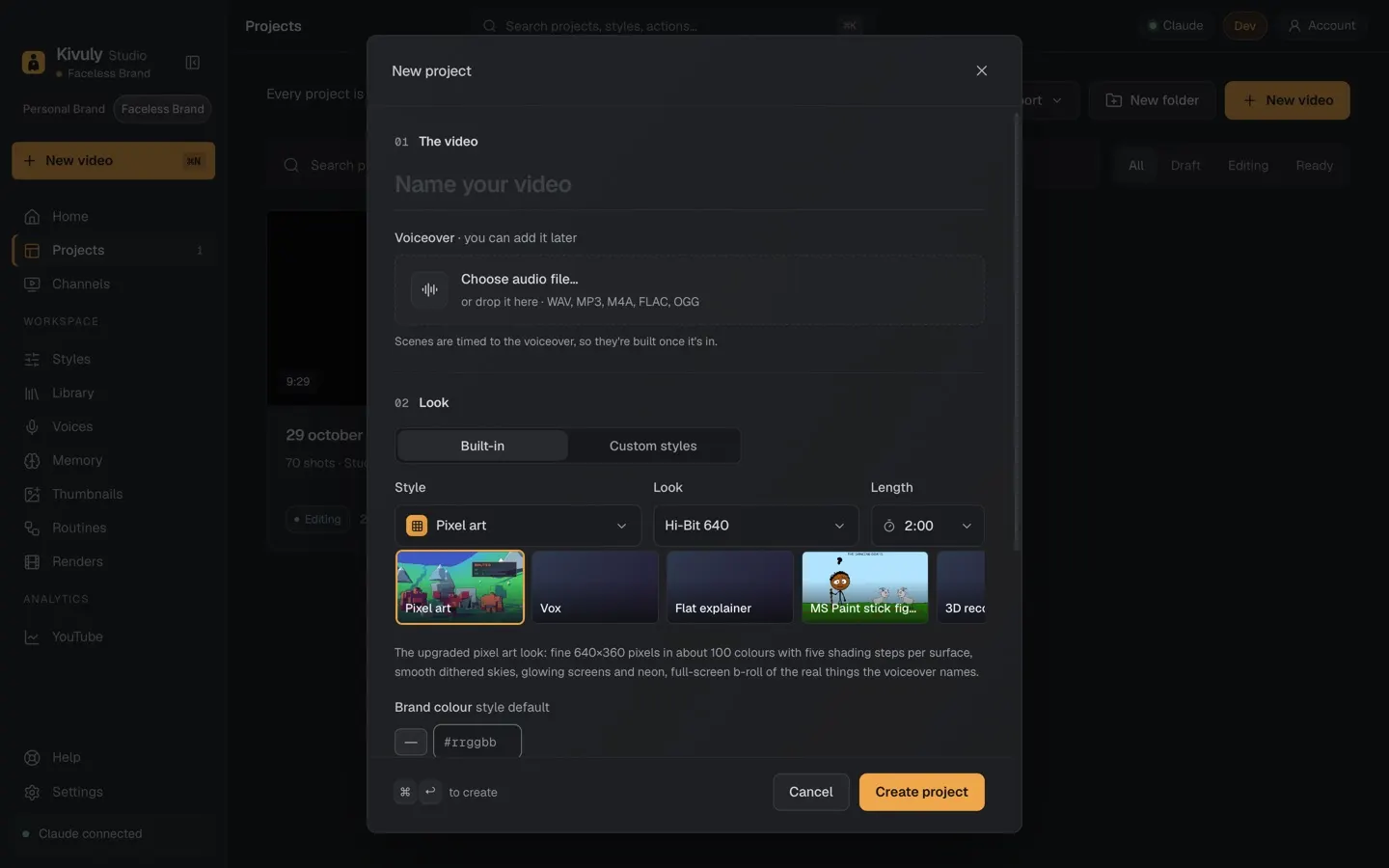
Step 1: Start a new project
Open Zaga Studio and create a new video. Give it a working title, for example “Why we procrastinate”, choose 16:9 and English.
Step 2: Write the script with AI
Describe the video in a sentence or two: the topic, the audience and the length. For example:
A 4-minute explainer for students on why we procrastinate and three ways to stop. Friendly, simple English. One idea per scene.
Generate the script. Zaga splits it into scenes, each with a line of narration and a suggested visual.
Now edit. Read the whole script aloud. Cut anything vague, check facts, and add one example from your own life. This step is what makes the video yours.
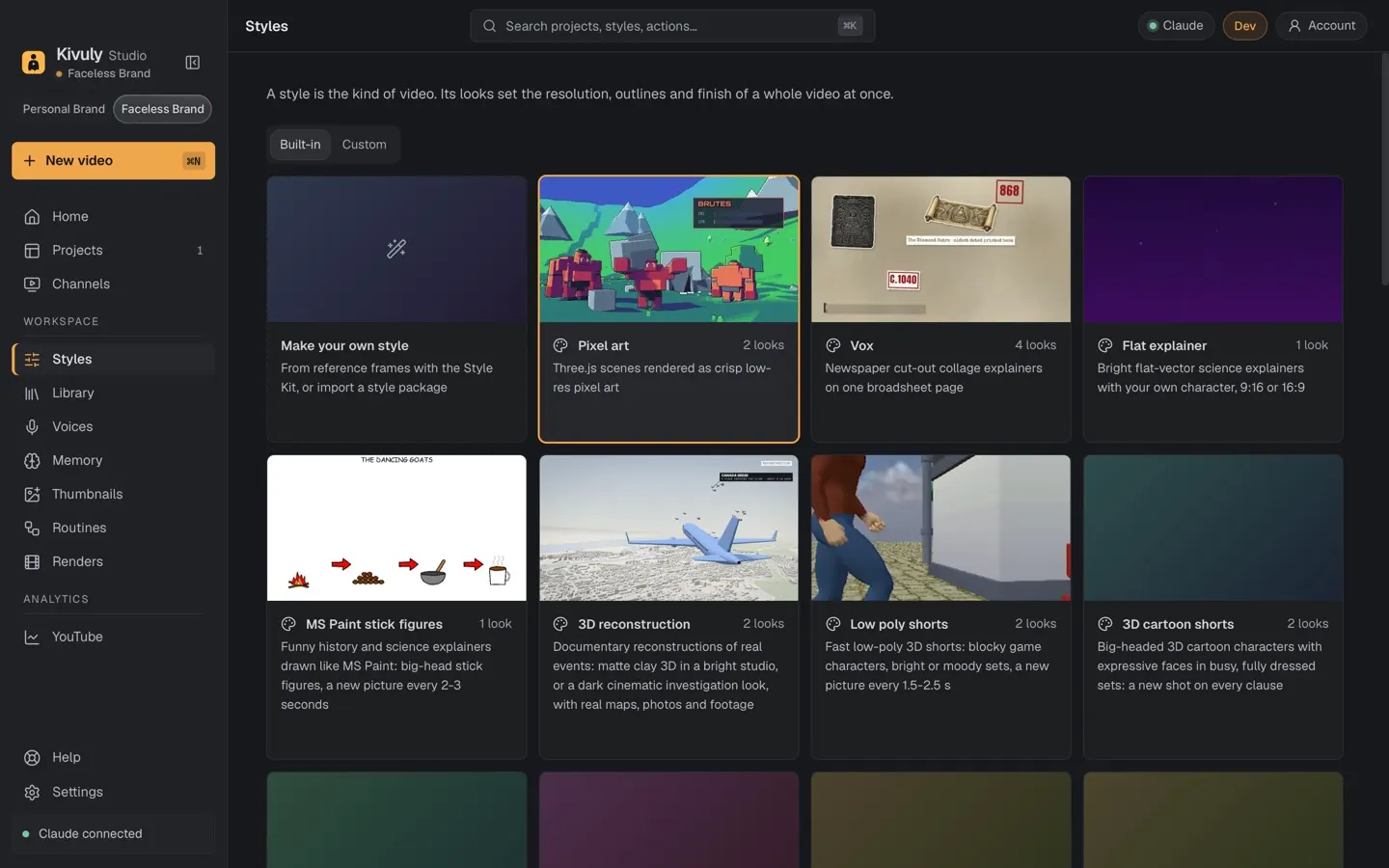
Step 3: Pick the stickman style
Choose Stickman as the style. Preview a scene or two. The stick figures act out each line, so concrete lines (“she opens her phone instead of her notes”) animate better than abstract ones.
Step 4: Choose a voice
Open the voice list and preview a few narrators on your first line. For this topic a warm, unhurried voice works well. If nothing fits, describe the voice you want and try the closest match.
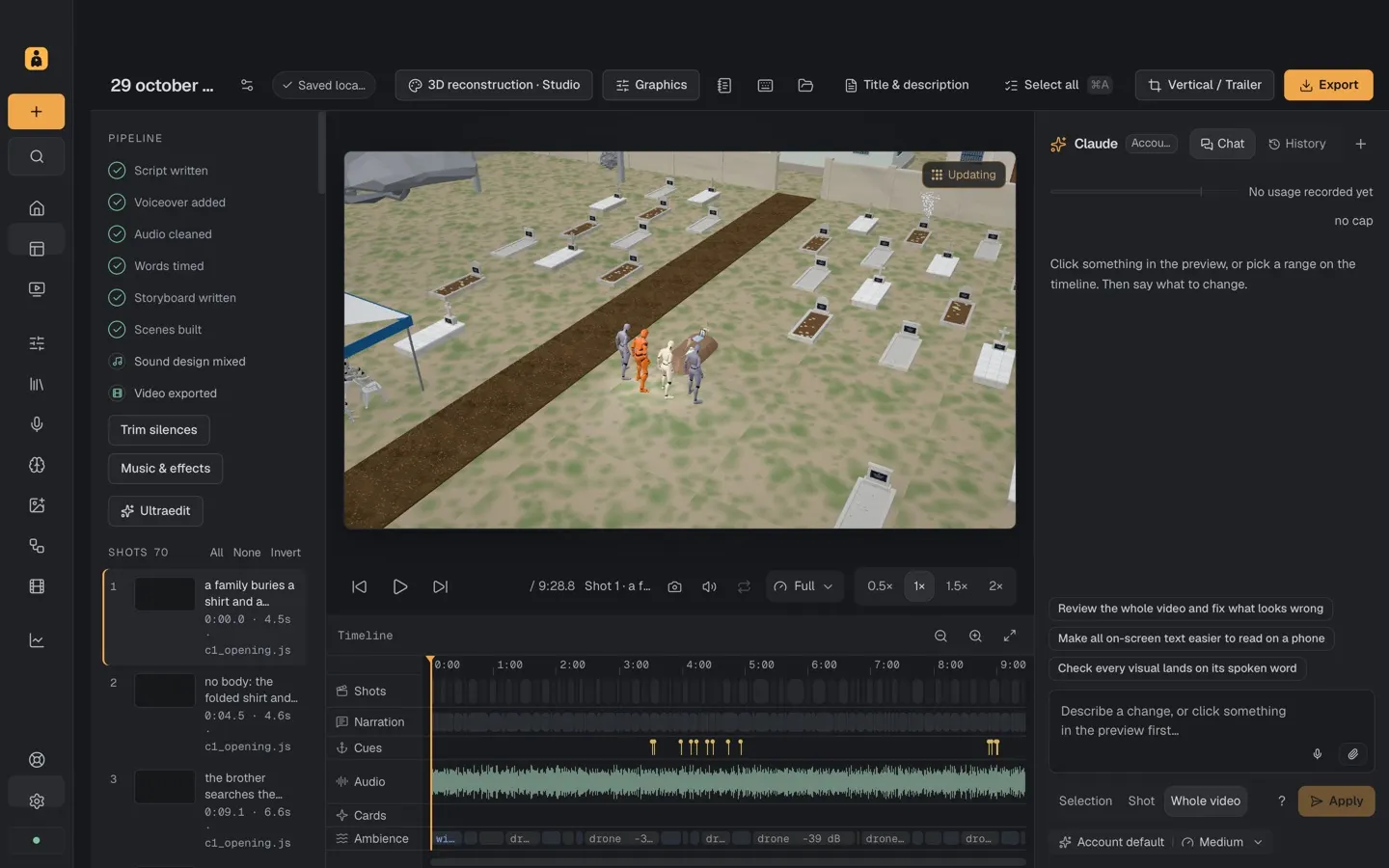
Step 5: Review on the timeline
Play the video through. On the timeline you can:
- change a line and re-voice just that scene
- swap the visual for a scene
- adjust caption timing
Watch the first ten seconds twice. If the hook isn’t clear, tighten it.
Step 6: Export and publish
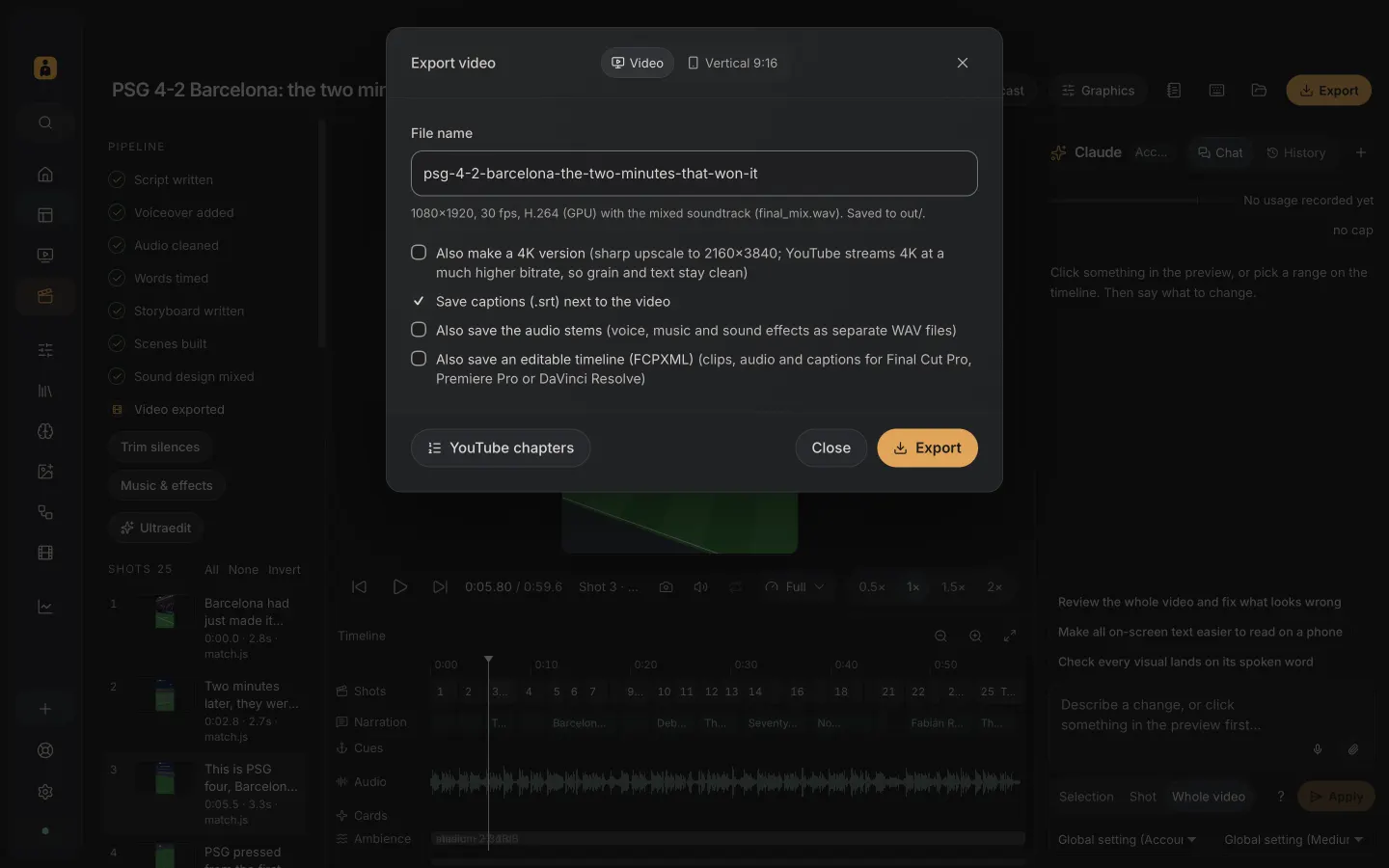
Export at 1080p. Then publish to YouTube from the app, or upload the file yourself. Write a title that matches what people search (“Why do I procrastinate? 3 ways to stop”) and a description with the main points.
Step 7: Make a Short from it
Switch to 9:16, keep your strongest scene, and export a 30-second version. Post it as a Short that points to the full video.
Share the result with #MadeWithZaga and tell people the style and voice you used.